
Tech Tip: How to Auto-Create a List of Sequential Numbers in MS Word
After spending way too much time manually typing numbers for my genealogy documents and files, I finally found a way to generate an automatic list of nicely formatted sequential numbers. Now I can quickly make:
- divider tabs for MRIN family numbers
- file folder tabs
- sticky labels to correspond with my photo file numbering system
Many people like to use a “real” filename for their family photos, but because so many of the photos from my grandmother’s collection are “subject unknown,” I decided to use an informative letter-number filename.
The first two letters indicate the item is from the Arline Kinsel archive; the next letter indicates the Photo collection, the numbers indicate the photograph’s individual file number:
AK-P001 = Arline Kinsel archive Photo 001
In the past, I manually prepared a sheet of labels in Microsoft Word, but this was clumsy and time-consuming. Lately, however, I have used a very easy SEQ script that is already available in the program; I just didn’t know it was there.
I found these easy to follow instructions at Allen Wyatt’s WordTips and adapted them for my own use.
Here’s what I do to make sequentially numbered photo labels
- Open or download a Word Template for the labels I want to use; such as #5422 Multi-Use Labels.
- In the first label space, type the recurring prefix: AK-P0 [zero]. (see example 1)
- Immediately following the prefix, type Ctrl+F9 and Word inserts a field.
- Type SEQ and a space; type a name for the sequence numbers, such as Photo.
- Press F9. A number appears in the field.
- Format the text with font, size, style.
- Copy the first label using Ctrl + C.
- Paste the contents to each label in the left column using Ctrl + V.
- I now have one column of labels, all the same.
- Select and Copy this column (Ctrl + C) and paste into the second column (Ctrl + V).
- I now have a full sheet of labels all the same.
- Select ALL using Ctrl + A.
- Press F9. All fields are updated with sequential numbers.
Hooray! Do you have another method to create easy sequential numbers?

Steps 1-3, optional add a leading zero
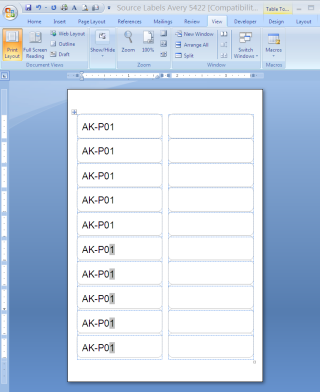
Step 9 – one column formatted for numbering
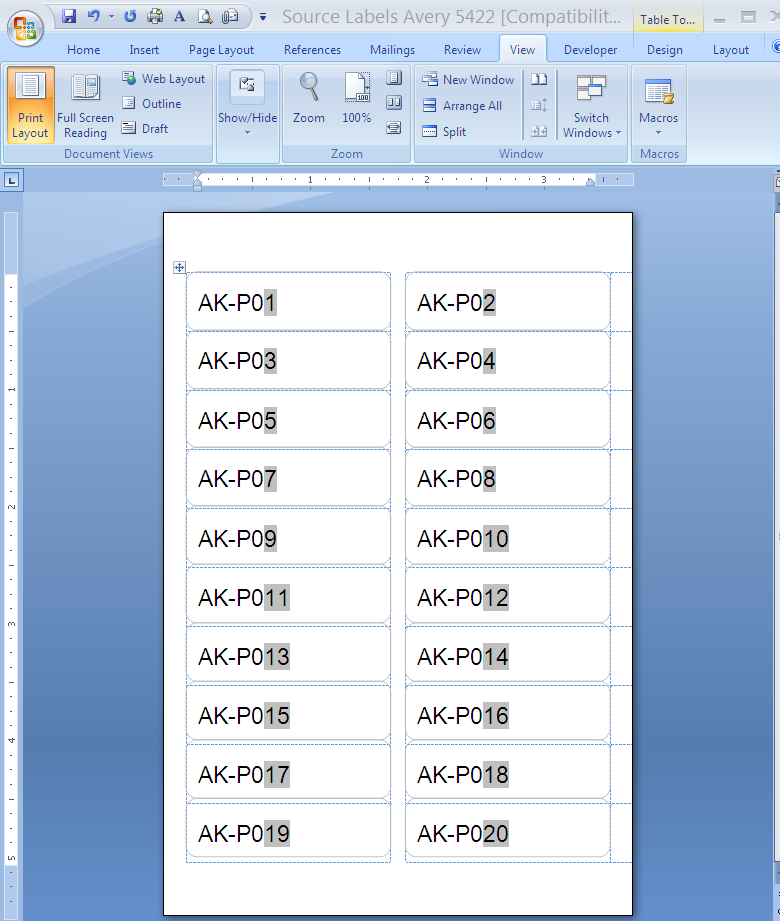 The completed sheet of labels.




Very Clever!