
How to Add Photo Metadata Without Special Software
Embedding metadata in a photo is a bit like turning over a snapshot to scribble your name and a note on the back of the picture. The information travels with the photo, where ever it goes. Yes, it takes an extra step to view the metadata on a digital file, in the same way that you have to turn over a photo to read what’s recorded on the reverse.

So, What Is Metadata?
Have you ever viewed the information for a digital photo and wondered where it came from and what it means? This information is called metadata, or “data about data.” To understand how metadata works and why it’s useful, it’s helpful to understand how capture devices organize images internally or on a memory card.
Every image can include two different kinds of data: Exchangeable image file format (EXIF) and International Press Telecommunications Council (IPTC). Some data are automatically recorded by the camera and others are available for your input. This data is used to sort and organize images in the camera and when transferred to your computer.
Both EXIF and IPTC data are referred to as metadata and provide information about your digital image. The data is embedded in the digital file itself for JPG and TIFF format images, or saved in a companion “sidecar” file for RAW images. There is some overlap in data between the two sets of data.
Learn to use metadata as part of your digital image workflow in my book How to Archive Family Photos (FamilyTree Books, 2015).
EXIF is Device Data
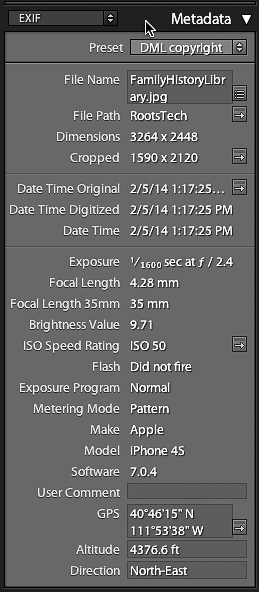
Typical Exif information includes all kinds of information about the camera make and model, resolution, exposure, location and other settings, but most importantly for organizing files, Exif records date and time of capture with a unique file name for each image. The date and time is used to organize image files in folders and the unique file name identifies individual image files. Because Exif data is added automatically by your camera or capture device, you can’t really input Exif data except to insure that your camera is set to record the correct date and time.
In Adobe Lightroom, the EXIF panel looks like this:
IPTC is Subject Data
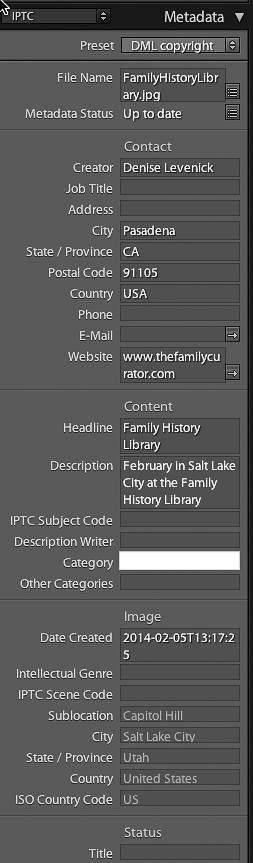
The IPTC data set is usually added by the user in the form of title, caption, subject, photographer, copyright, and so on. Originally designed to help news providers locate and credit photo sources, IPTC data is a genealogists friend when it comes to adding information about the people, places, and events shown in an image. Some IPTC data can be set automatically but most information must be individually recorded.
The IPTC data looks like this:
Add Metadata to Shared Photos
Using embedded metadata is a bit like writing your name and phone number on the back of a snapshot. The information travels with the photo, and anyone who opens the file to look at the Properties or Information will be able to read the information you’ve recorded. For photos that will be shared on a public or online website, it’s a good idea to add a few basic lines of information so that someone down the line can learn where the photo came from and who is pictured in the image. The most basic data is usually enough, including:
- Your name and email as the current owner of the image
- A short title identifying the photo subject
- A brief description or caption identifying any people, events, or dates
To add IPTC metadata to individual photos, you can use the Properties panel on your PC or the Get Info option on your Mac.
Add Metadata on a PC
On a PC, right-click on the image and select Properties. Rename the file in the main window [A]. Click the Details tab to add tags and keywords [B].
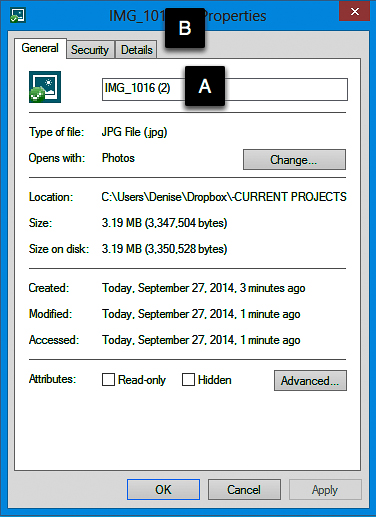
Update: As noted in the comments, adding metadata through the Windows Properties feature may not the best option. Metadata is a “funny” thing. It doesn’t always “stick” so that it’s visible in other applications. Before embarking on a large project renaming images, test a few files and open in other programs to confirm that the metadata has transferred. Using the SAVE AS or EXPORT command may work to embed the added metadata.
Add Metadata on a Mac
On a Mac, select an image and open the Information window with Command-I. Rename the file [A] and add tags and keywords in the window [B].

When organizing large image collections it’s usually most efficient to add tags, keywords, and captions to the metadata using batch-editing functions in a photo management program such as Adobe Photoshop Elements, Adobe Lightroom, Picasa, or Xnview.
My favorite tagging and data tool is Adobe Lightroom where I can add keywords, event names, and unique filenames as photos are imported from my memory cards or mobile devices. If you’re working with a limited number of photos, however, it’s a quick and easy task to add metadata to a few images with the Properties or Information panel.
Learn more about organizing your digital photos and making the most of metadata in my book How to Archive Family Photos: A Step-by-Step Guide to Organize and Share Your Photos Digitally, available from ShopFamilyTree and Amazon.com.


In my testing just now, between Windows 10 and the latest OS X, absolutely no information is retained cross-platform and none of it, including tags, shows up in Photoshop either.
The way I did it was add text to the Comments field via Properties in Windows, then emailed it my wife and checked Get Info on her Mac. The text was nowhere to be found. So I added new different text to the Comments and the Tags field on the Mac, and emailed it back to myself. I opened the file on Windows and none of the Mac text was there, but the original text I typed on Windows was. Then I opened the file in Photoshop CC on Windows and none of the text from any attempt was visible in the EXIF or anywhere else using File Info in Photoshop.
It’s not your fault, obviously, but this really sucks from any kind of information systems point of view.
Agreed, it stinks when you go to so much effort to tag files and the data doesn’t go along with the file. I experienced similar problems back in the XP days, but it did seem to work with Windows 8 for my testing. It could be that this capability is broken in Windows 10, or that another step — such as exporting or using Save As — is required.
I was so frustrated with losing metadata that I switched to Adobe Lightroom for all my digital file tagging and organizing. It works cross-platform and gives me all the basic editing features that I need. I join you in wishing the operating system did the same thing.
In my testing just now, between Windows 10 and the latest OS X, absolutely no information is retained cross-platform and none of it, including tags, shows up in Photoshop either.
It’s not your fault, obviously, but this really sucks from any kind of information systems point of view.
Chuck, you’ve hit on one of the problems with adding metadata. Typically files need to be “exported” for the metadata to “stick” but sometimes the operating systems just don’t play nicely.
I just use the Paint program to write captions below photos. Just pull down on the resizing dot on the bottom of photo and use the Text “A”, then write in as much info as I want. Pull it down far enough that there is plenty of space to write, then when you’re finished writing, use the resizing dot to shorten the photo just enough to remove the white space at the bottom and still show your caption.
When you add metadata on a MAC using spotlight comments section as shown above, does that information transfer when you send the photo to a PC? I’ve tried it and I can’t find the metadata I added but maybe I’m looking in the wrong spot on the PC. I have been able to add metadata on my MAC using Preview and then having that visible on the PC, but that is more cumbersome. Suggestions?
Hi Cat,
Yes. I tested this again to confirm, but yes, the keywords added in Spotlight do transfer and show up in the PC Photo Viewer. I did another test to see how and what metadata would transfer, if at all, from Windows to Mac. I will post screenshots of my experiment tomorrow on the blog. Thanks for a great question.
I haven’t been able to enter caption data in Mac that shows up on a PC or in any other software. If you’ve figured that out, I’d love to know! Thanks!
Alison, I’ve found that it’s all trial-and-error with metadata. And to make things worse, system and software updates can break features and change actions. Sorry not to be more helpful. My best advice is to move to a photo management program like Adobe Lightroom that offers true metadata tagging that DOES stick.